Three.js is a popular open-source JavaScript library used for creating and displaying 3D computer graphics in a web browser. It provides a wide range of features and functionality for creating 3D scenes, such as rendering, lighting, texturing, animation, and interaction.
With Three.js, developers can create complex 3D scenes with relative ease, using a variety of built-in objects like cubes, spheres, planes, and lights, as well as more advanced objects like cameras, meshes, and materials. Three.js also supports loading 3D models from various file formats, including OBJ, STL, and GLTF.
Three.js can be used in a variety of applications, including games, interactive data visualization, and virtual reality experiences. It is compatible with all major web browsers and platforms, including desktop and mobile devices.

Simple Setup
main.ts
import "./style.css";

import { OrbitControls } from "three/addons/controls/OrbitControls.js";
// optional, import only if you want orbit control

import * as THREE from "three";
import { loop, setup } from "./counter";

export const scene = new THREE.Scene();
export const camera = new THREE.PerspectiveCamera(
  75,
  window.innerWidth / window.innerHeight,
  0.1,
  1000
);

export const renderer = new THREE.WebGLRenderer({
  canvas: document.querySelector("#canvas") as HTMLCanvasElement,
});

export const controls = new OrbitControls(camera, renderer.domElement);
// optional, use this code only if you want orbit control

renderer.setPixelRatio(window.devicePixelRatio);
renderer.setSize(window.innerWidth, window.innerHeight);

setup();
animate();

function animate() {
  window.requestAnimationFrame(animate);
  controls.update();
  // optional, use this code only if you want orbit control

  loop();
  renderer.render(scene, camera);
}- Scene is a tree like structure which contains almost every type of object in 3d scene.
- Camera is used to view the scene. It is not necessary to build 3d model, only to view the scene.
PerspectiveCamera( fov : Number, aspect : Number, near : Number, far : Number )
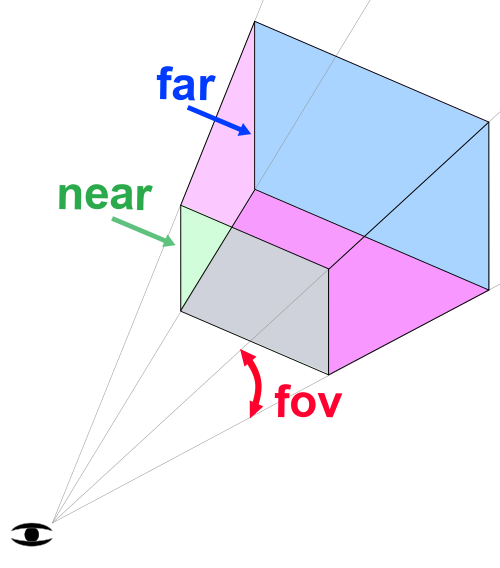
fov (field of view): This is the angle in degrees between the top and bottom planes of the camera frustum. It represents the vertical field of view of the camera, which determines how much of the scene is visible through the camera lens. A larger fov means a wider angle of view and a larger portion of the scene is visible, while a smaller fov means a narrower angle of view and a smaller portion of the scene is visible.
aspect ratio: This is the ratio of the width of the camera frustum to the height of the camera frustum. It determines the shape of the camera frustum and the aspect ratio of the rendered image. For example, an aspect ratio of 1:1 means the camera frustum is a square, while an aspect ratio of 16:9 means the camera frustum is wider than it is tall.
Near plane: This is the distance from the camera to the closest objects that can be seen in the scene. Any objects closer than this distance will be clipped and not rendered. Setting the near plane too close can cause visual artifacts, while setting it too far can result in a loss of depth perception.
far plane: This is the distance from the camera to the farthest objects that can be seen in the scene. Any objects farther than this distance will be clipped and not rendered. Setting the far plane too far can result in a loss of precision and performance issues, while setting it too close can cause distant objects to disappear prematurely.
const camera = new THREE.PerspectiveCamera( 45, width / height, 1, 1000 ); scene.add( camera );
- There is a
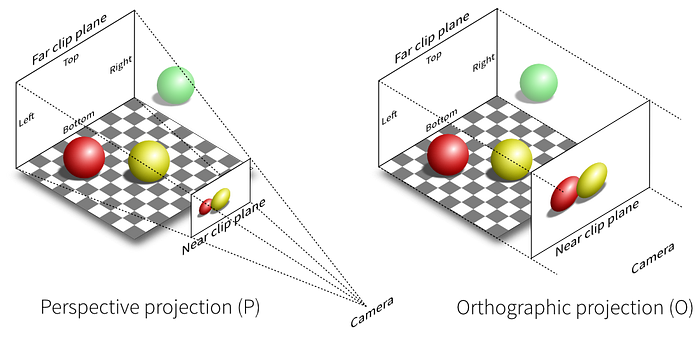
Renderer. This is arguably the main object of three.js. You pass aSceneand aCamerato aRendererand it renders (draws) the portion of the 3D scene that is inside the frustum of the camera as a 2D image to a canvas. There is some simple setup going on for renderer , which is nearly always same in every code. - And animate() function is used for running loop() function before repaint occurs. Other than loop function in animate function are can be kept same. We will see loop() and setup() in counter.ts
Counter.ts
import { AmbientLight, BoxGeometry, Mesh, MeshStandardMaterial } from "three";
import { camera, scene } from "./main";

let box: Mesh;

export function setup() {
  let boxGeo = new BoxGeometry(1, 1, 1);
  let mat = new MeshStandardMaterial({
    color: 0xffff,
  });

  let light = new AmbientLight("#ffffff", 0.5);
  scene.add(light);

  box = new Mesh(boxGeo, mat);
  scene.add(box);
  camera.position.set(3, 5, 5);
}

export function loop() {
  box.rotation.x += 0.01;
  box.rotation.y += 0.01;
}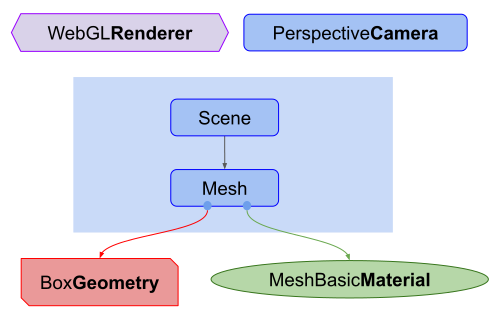
For mesh to exist both Geometry and material is needed. There are a lot of geometry and material.
I used BoxGeometry and Basic Material. Basic Material is not affected by light so you can use MeshPhongMaterial which is affected by Light
AmbientLight
This light globally illuminates all objects in the scene equally. This light cannot be used to cast shadows as it does not have a direction.
AmbientLight( color : Integer, intensity : Float )
color — (optional) Numeric value of the RGB component of the color. Default is 0xffffff.
intensity — (optional) Numeric value of the light’s strength/intensity. Default is 1.
In Loop function I rotated the box.
If you have any queries, feel free to contact us on https://discord.gg/RDU62RrFe3